> ## Documentation Index
> Fetch the complete documentation index at: https://bruno-a6972042-mintlify-4e261c89.mintlify.site/llms.txt
> Use this file to discover all available pages before exploring further.
# Consumer
## Cloning Collections from GitHub
To clone a collection from GitHub into **Bruno**, you need to have an existing collection repository hosted on GitHub.
You must have an existing collection repository hosted on GitHub.
For example, you can use this [Bruno repository ↗](https://github.com/usebruno/github-rest-api-collection) and follow the steps below.
1. Launch **Bruno** and click on the **Main Menu** in the top-left corner.
2. Click on **Import Collection** from the dropdown menu.
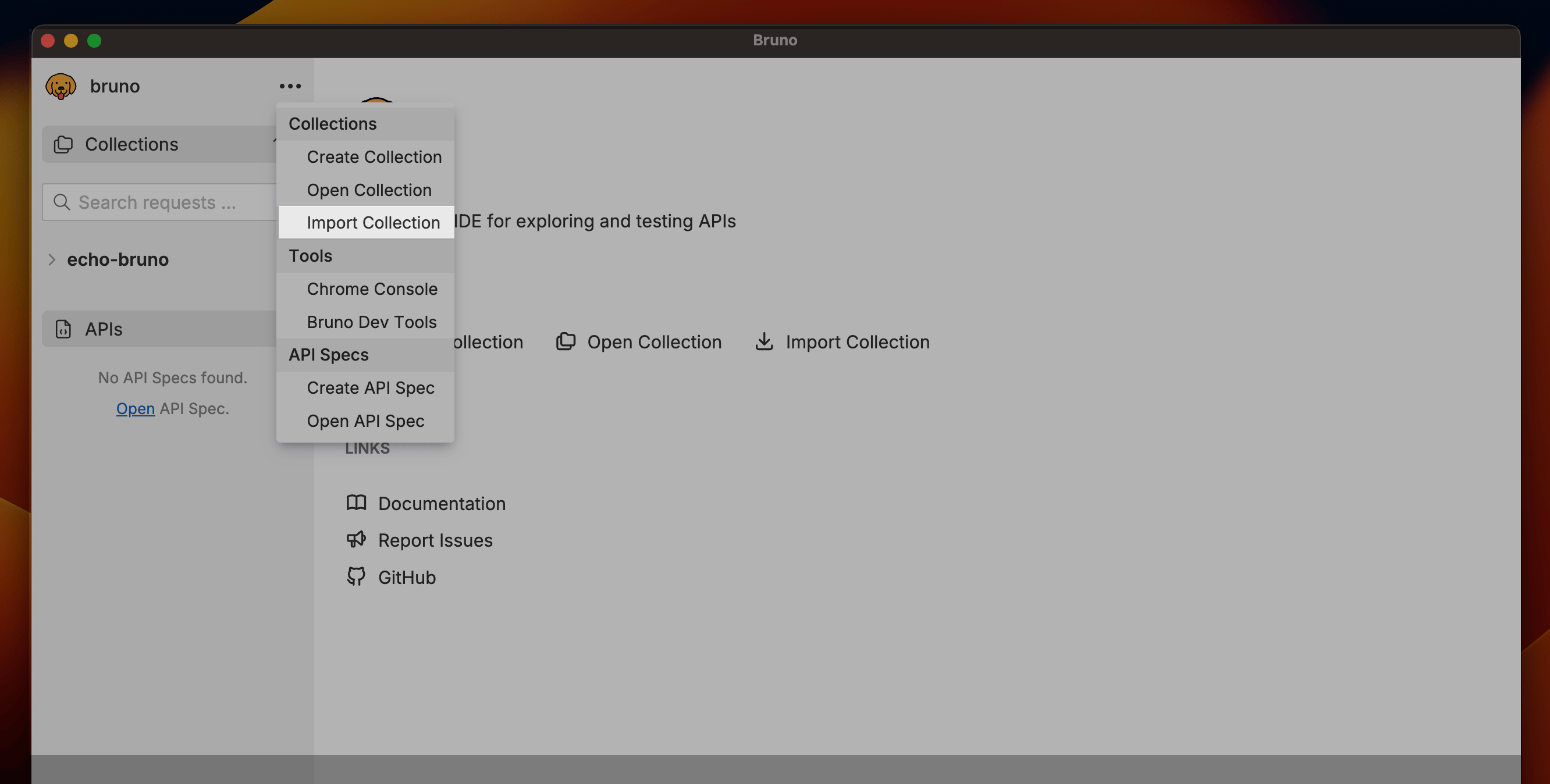 3. Select **Clone Git Repository** from the available options.
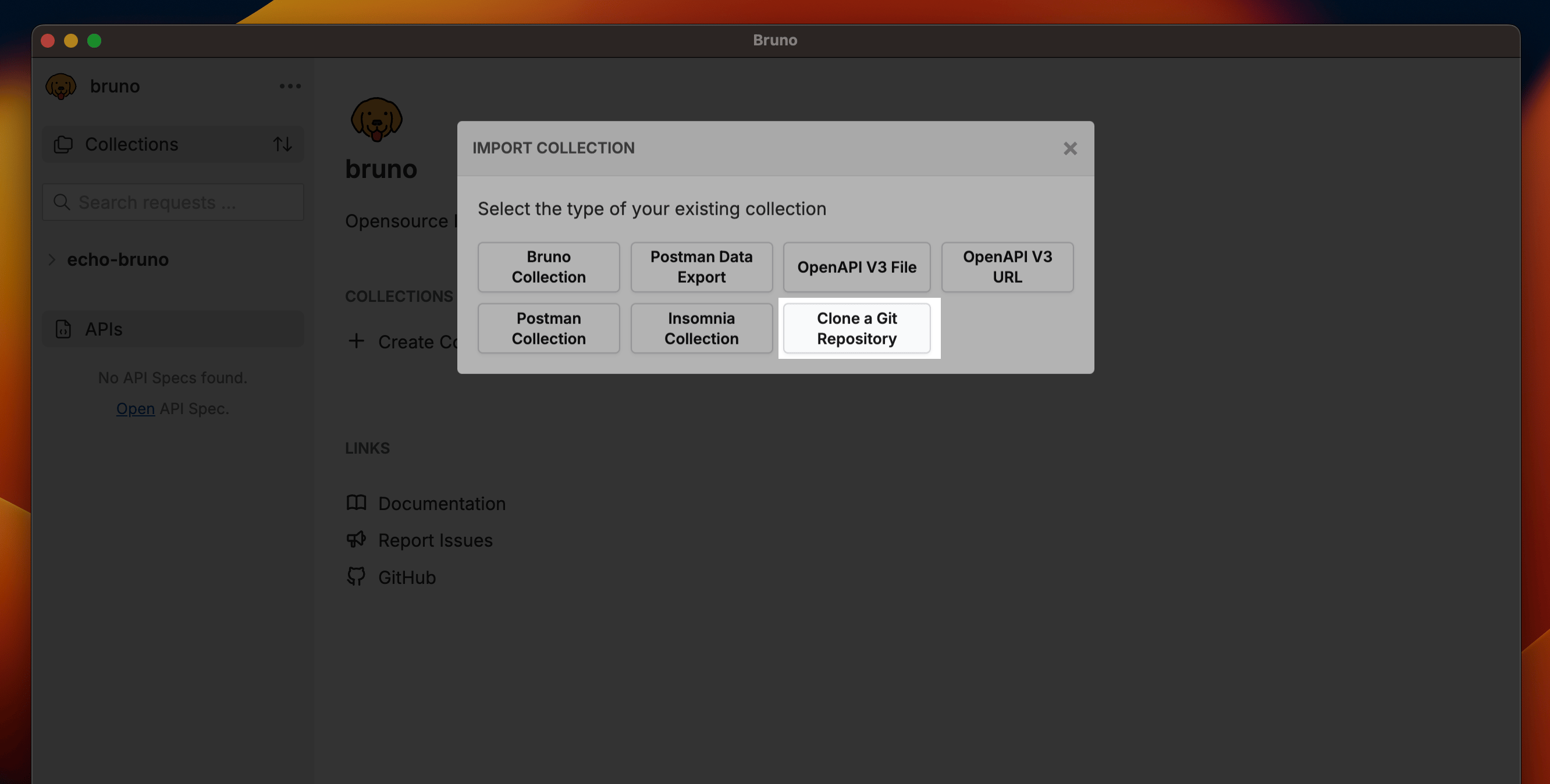 4. Enter the above **GitHub Repository URL** and specify the **Location** where you want to save the cloned collection.
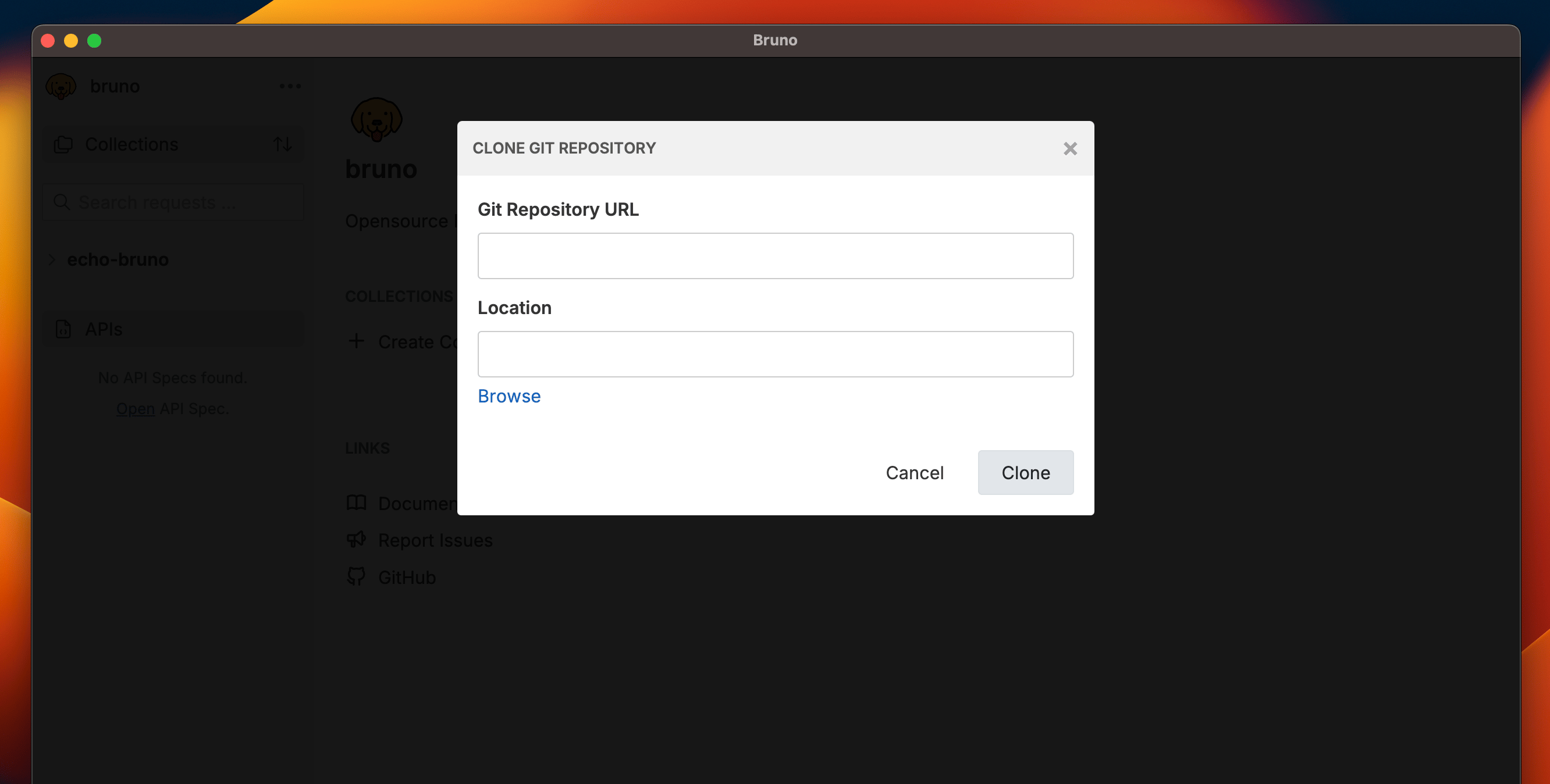 5. Click the **Clone** button to begin cloning the repository.
6. After the cloning process completes, select the **Collection** you want to open and click **Open**.
5. Click the **Clone** button to begin cloning the repository.
6. After the cloning process completes, select the **Collection** you want to open and click **Open**.
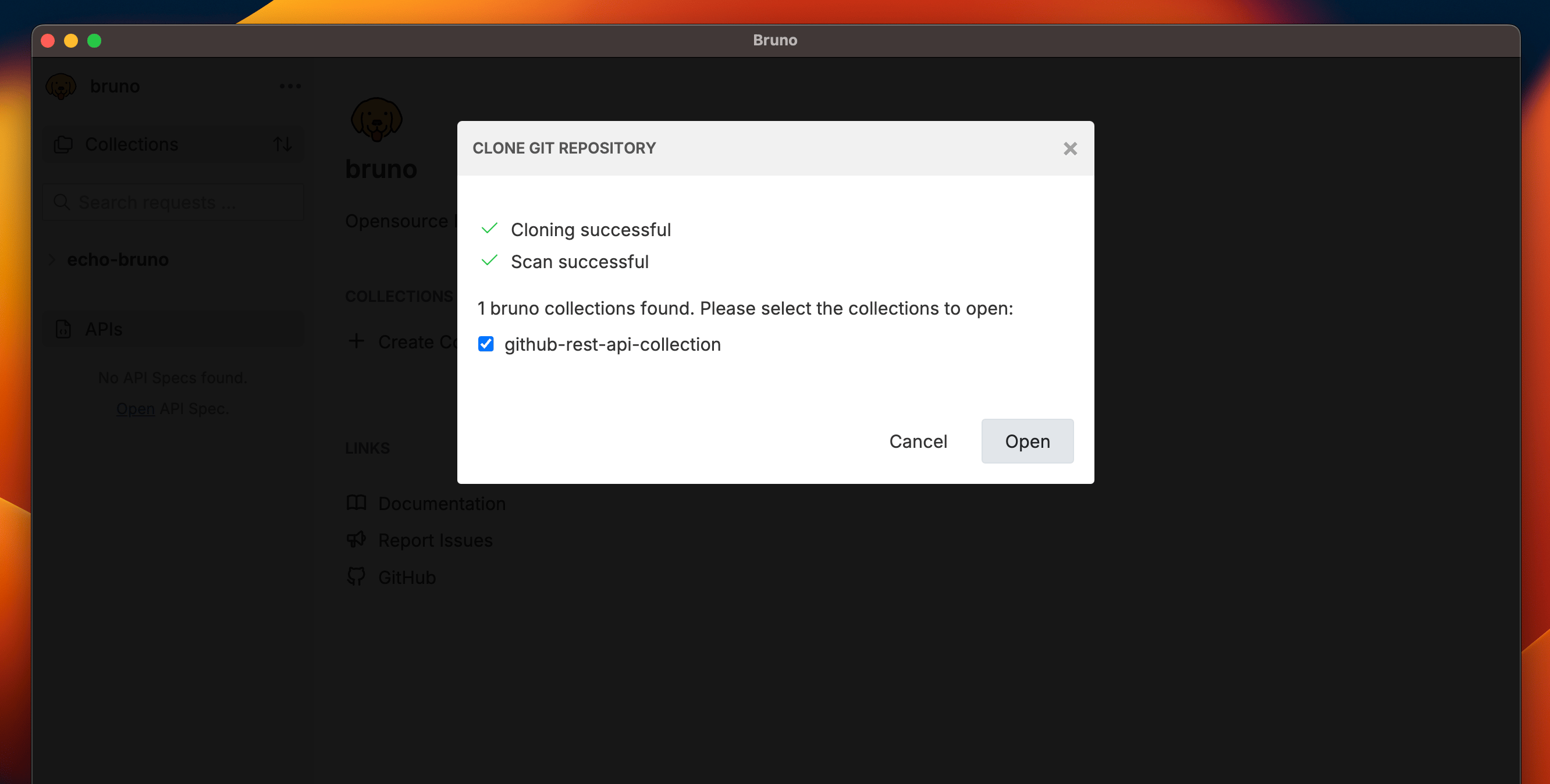 You'll see your collection will be open in **Bruno**.
### **Pulling Changes**
Pull the latest changes from the remote repository to stay synchronized with your team.
1. Go to **Git UI**.
2. Toggle **Check for Updates** button.
3. Select **Pull from** and confirm the **Remote Server** configurations.
4. Click on **Pull** button.
You'll see your collection will be open in **Bruno**.
### **Pulling Changes**
Pull the latest changes from the remote repository to stay synchronized with your team.
1. Go to **Git UI**.
2. Toggle **Check for Updates** button.
3. Select **Pull from** and confirm the **Remote Server** configurations.
4. Click on **Pull** button.
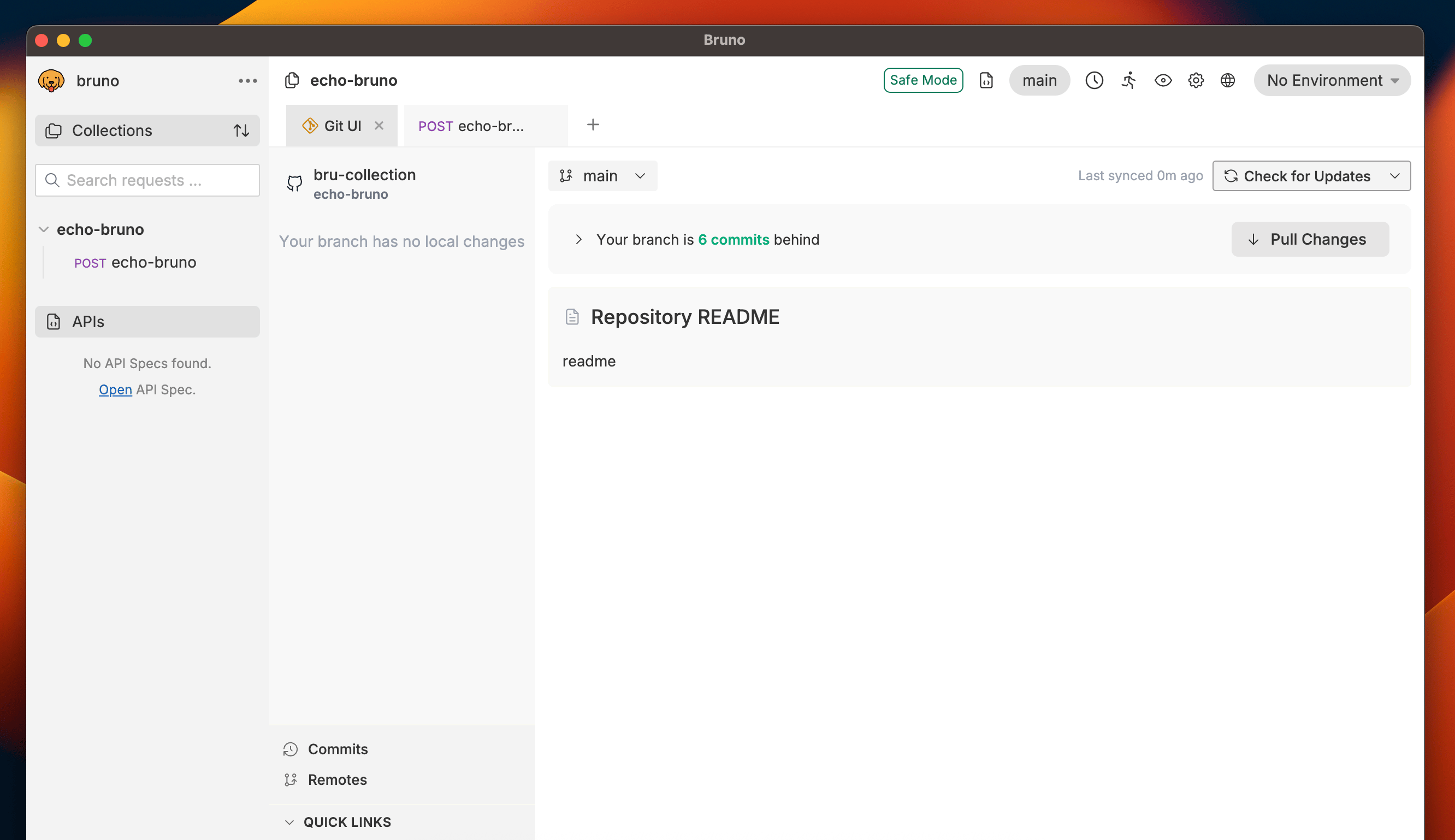 Now you can see all your remote changes pulled in your collection.